Best RDR2 controller settings: aiming, camera and HDR
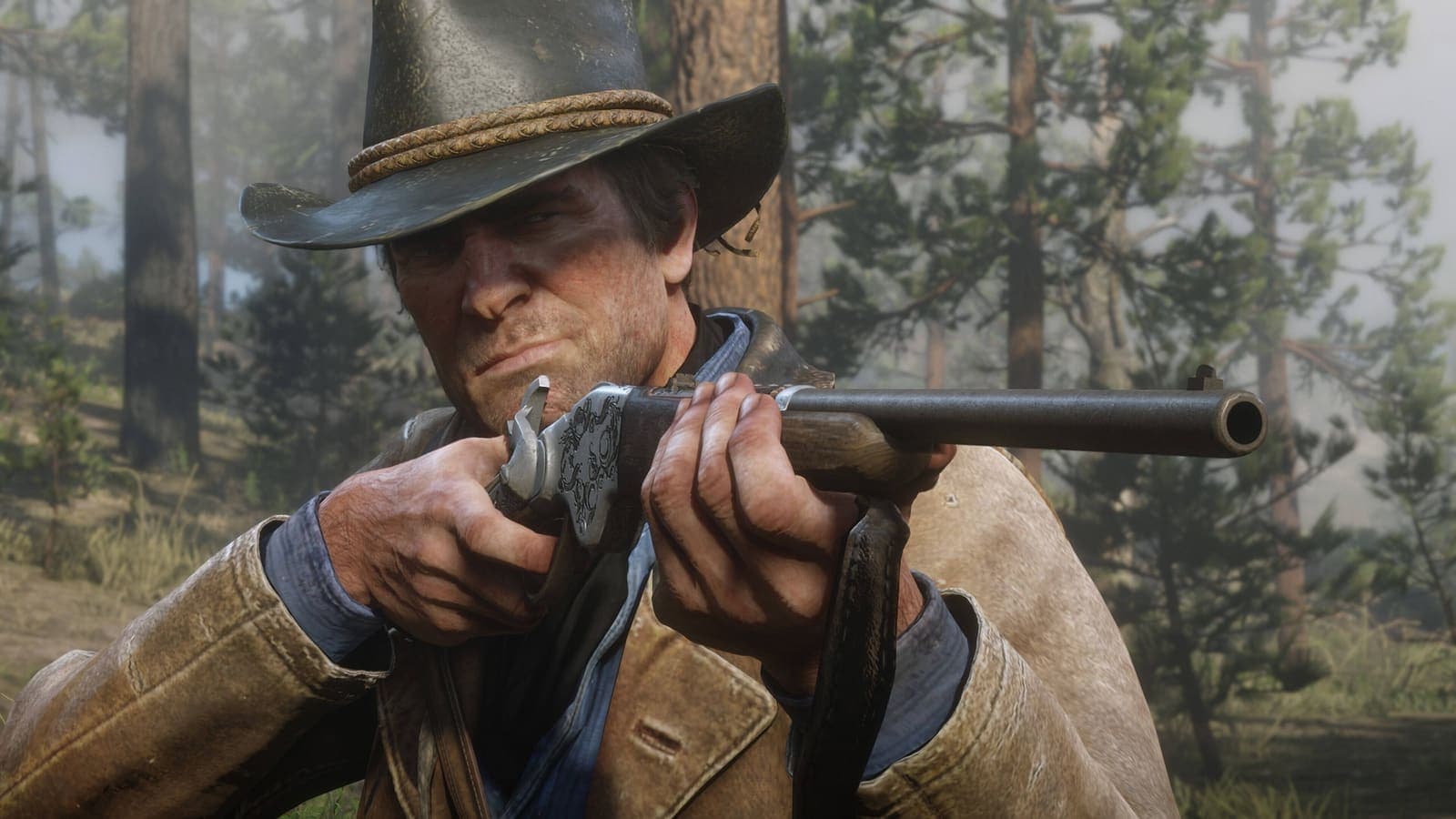
Image: official screenshot © Rockstar Games
Quick answer
For a more responsive Red Dead Redemption 2, drop Aim/Look Dead Zone to the minimum, push Aim/Look Acceleration to the maximum, switch to the Standard FPS preset with Toggle to Run and turn on Tap Assist. On an HDR screen, pick Game HDR and match Peak Brightness to your display. Every console, PS5 and Xbox Series included, still runs the last-gen version at 30 FPS: only the PC version goes higher.
Red Dead Redemption 2 is one of the most beautiful games ever made, and one of the heaviest in the hands. Arthur does not spin on the spot like a shooter hero: he plants his feet, shifts his weight and takes a beat to turn. That weight is part of the charm, but the default settings add a layer of sluggishness that nobody needs. Here are the controller, aiming, camera and display settings worth changing in story mode and Red Dead Online, with an honest look at what each machine can deliver.
Setting names are given as they appear in the English menus. We only give a recommended value when several reputable guides agree on it. Everywhere else, we explain what the setting does and how to tune it yourself.
Why the controls feel heavy (and what actually helps)
It is not your controller. An animator who compared several third-person games frame by frame, in an analysis relayed by Mein-MMO and GamePro, found that RDR2 took the longest to respond to an input, and noted that many actions are tied to long animations. That is the price of a game where every draw from the holster, every climb into the saddle and every stumble in the mud is fully animated.
No setting removes that weight. What you can remove is everything stacked on top of it: the stick dead zone, the lazy camera and the button mashing to run.
The six changes that matter most
Almost all of these live in Settings, then Controls (Running Mode and Tap Assist sit in its Accessibility block, and the field of view is with the camera options). The Third Person and First Person blocks each have their own preset and their own stick sliders, so set both if you switch views.
| Setting | Recommended | Why |
|---|---|---|
| Aim/Look Dead Zone | Minimum | The camera reacts to small stick movements instead of ignoring them |
| Aim/Look Acceleration | Maximum | Smoother, more direct camera control |
| Third Person Controls | Standard FPS | Sprint moves to a click of the left stick, so your right thumb stays on the camera |
| Running Mode | Toggle to Run | One press keeps you sprinting on foot instead of hammering a button |
| Tap Assist | 2x to Hold | Fewer rapid taps, or none at all, in button-mashing sequences |
| First Person Field of View | Maximum | You see more of the room when you play in first person |
One caveat on the dead zone: if your controller has stick drift, the camera will start moving on its own at the minimum. Raise the slider one notch at a time until it stops, and no further.
Aiming: Lock-On Mode and Aim Assist Strength
Under Targeting and Weapons, you set the lock-on twice: once on foot, once for mounts and vehicles.
| Lock-On Mode | What it does |
|---|---|
| Free Aim | No snap to the target: you place every shot yourself |
| Narrow | Locks on only if your reticle is already very close to the target |
| Normal | The middle ground, and the choice most guides recommend |
| Wide | Snaps from further away: the most forgiving option |
RDR2's gunplay is built around the lock-on. Hold aim, the reticle lands on the torso, then nudge the right stick up gently to reach the head. Normal keeps that rhythm without making fights automatic. If you want to try Free Aim on foot, consider keeping the lock-on for mounts and vehicles: aiming from a galloping horse is another sport.
Aim Assist Strength is the slider that decides how firmly the reticle sticks to a target. Here the guides do not agree: Gameranx suggests about a quarter, so the reticle points at the enemy without being glued to it, Push Square sits around the middle, and Gamepur goes to the maximum. There is no universal value. Start in the middle, lower it if the reticle drags you away from the target you wanted, raise it if you keep losing enemies in a firefight.
Sensitivity: tune it after the rest
Look Sensitivity handles the camera when you are not aiming, Aim Sensitivity takes over when you are. Recommendations range from around three quarters of the bar to the maximum, so we will not give you a number.
The method that works: change the dead zone and acceleration first, because they alter the feel of everything else. Then raise Look Sensitivity one notch at a time until you can swing the camera around on horseback without waiting for it. Keep Aim Sensitivity a little lower if you overshoot your targets.
Presets, sprint and accessibility
- Standard FPS swaps the sprint and crouch inputs. Despite the name, it works just as well in third person.
- FPS2 is a variant Rockstar added with Title Update 1.09. It moves Sprint to R1 or RB, with the stated aim of letting you run and move the camera at the same time.
- Running Mode: Toggle to Run only applies on foot. Your horse still needs you to manage its pace.
- Tap Assist offers Off, 2x, 3x, 4x or Hold, as Rockstar Support describes it. Hold turns the rapid-tap sequences into a simple press and hold.
- Hold to Reel (Fishing) lets you hold a button to reel in a fish instead of rotating the right stick.
- Vibration is a plain on/off toggle. Leave it on for immersion, turn it off if it distracts you in PvP.
Camera, first person and HUD
- Views: the touchpad (PlayStation) or the View button (Xbox) cycles between first person and the third-person camera distances.
- First Person Field of View: push it to the maximum, as both Gameranx and RDR2.org advise. The PC version also has a Third Person Field of View slider.
- Camera Follow Level: this decides how insistently the third-person camera swings back behind your character. Lower it or turn it off if you want the camera to stay where you leave it, for example to watch the sun go down over the plains while your horse keeps to the trail.
- Radar: in Settings, then Display, or by holding down on the D-pad in game, you can pick Regular, Expanded, Compass or no radar at all. Expanded helps when you keep losing the route. Compass or off is worth a try once you know the map: characters give you more spoken directions, and you finally look at the world instead of the corner of the screen.
- Subtitles can show the speaker's name, and colour-blind modes are available too.
HDR: Game or Cinematic?
At launch, RDR2's HDR was widely criticised: Digital Foundry showed it was essentially a standard image stretched into an HDR signal. Rockstar answered with Title Update 1.09 (May 2019), which added an HDR Calibration menu with two styles: the original Cinematic HDR and a new Game HDR, plus a manual Peak Brightness value.
| Setting | Recommended | Why |
|---|---|---|
| HDR style | Game | Real HDR output. Cinematic looks flatter and more washed out |
| Peak Brightness | Your display's peak, in nits | Highlights use what your screen can really show |
| Paper White | Around 200 to 250 in a dark room, up to 300 in a bright one | Sets the overall image and HUD brightness |
If you do not know your screen's peak, Digital Foundry's method is to raise Peak Brightness until the Rockstar logo on the calibration screen disappears, then go slightly beyond. Avoid pushing Paper White too high: one independent HDR analysis notes that it lifts the blacks and washes the image out.
Be aware that even in Game mode, this HDR is good without being a reference. If night scenes look grey on your screen, playing in SDR is a perfectly valid choice: Saint Denis under its street lamps is gorgeous either way.
As for motion blur, the toggle is part of the PC graphics menu. We found no reliable source documenting an equivalent switch on console. For the PC side, see our best RDR2 PC graphics settings.
What each machine can really deliver
Consoles have no graphics menu: resolution and frame rate are fixed. And as of October 2026, there is no native PS5 or Xbox Series version of Red Dead Redemption 2. The newer consoles run the last-gen game through backward compatibility.
| Machine | Resolution | FPS |
|---|---|---|
| PS4 | 1080p | 30 target, dips in busy towns |
| Xbox One and One S | 864p | 30 target, dips in busy towns |
| PS4 Pro | 1920x2160 reconstructed to 4K | 30, steadier, some dips in towns |
| Xbox One X | Native 4K | Near-locked 30 |
| PS5 (runs the PS4 Pro version) | 1920x2160 reconstructed to 4K | 30, capped |
| Xbox Series X (runs the One X version) | Native 4K | 30, capped |
| Xbox Series S (runs the base Xbox One version) | Same render as the base Xbox One | 30, capped |
| PC | Whatever your hardware allows | Uncapped: 60, 120 and beyond |
The launch figures come from Digital Foundry's analysis. On PS5 and Xbox Series, the gains are a steadier 30 FPS and shorter loading times thanks to the SSD, not a higher frame rate. The PS5 also gets no DualSense features, since it is running the PS4 game.
What that means in practice:
- PS4 and Xbox One: the frame rate drops in busy towns and no menu will fix it. The control settings above matter even more here: a small dead zone and a faster camera offset part of the heaviness. Also switch your TV to its game mode to cut display lag.
- PC: this is the only way to play above 30 FPS. If your machine is modest, our low-end PC and Steam Deck settings show how far you can go.
Red Dead Online: what changes
The same Controls menu applies online, with a few specifics:
- Since Title Update 1.09, according to Rockstar's notes, when you lock on to a player's torso and flick the right stick up, the reticle no longer adjusts toward the head automatically. Headshots on players take a real correction.
- Per the same notes, players in the Defensive playing style can neither lock on to other players nor be locked on to.
- On console, assume your opponents play with the lock-on: going Free Aim in PvP is a handicap you choose, not an advantage.
About "free aim lobbies": guides from 2019 reported that setting both Lock-On Modes to Free Aim matched you with other free-aim players. Later player reports contradict this and Rockstar does not document it today, so do not count on it.
Your loadout matters as much as your settings online: see our best ability cards.
Go further
- All our Red Dead Redemption 2 guides in one place
- Best RDR2 PC graphics settings to balance image and frame rate
- RDR2 on a low-end PC and Steam Deck
- Red Dead Redemption 2 beginner tips for story mode
- Red Dead Online beginner guide
- The incredible details of RDR2, to see what all that animation work buys you
FAQ
What are the best controller settings for Red Dead Redemption 2?
Aim/Look Dead Zone at the minimum, Aim/Look Acceleration at the maximum, the Standard FPS preset, Running Mode on Toggle to Run and Tap Assist enabled. Keep Lock-On Mode on Normal, then tune Aim Assist Strength and sensitivity to your own feel.
Does Red Dead Redemption 2 run at 60 FPS on PS5 or Xbox Series X?
No. As of October 2026 there is no native PS5 or Xbox Series version: both consoles run the last-gen game, capped at 30 FPS. Only the PC version reaches 60 FPS and above.
Should you use Game or Cinematic HDR in RDR2?
Game HDR, added by Title Update 1.09 in May 2019: real HDR output with an adjustable Peak Brightness. Cinematic is the original mode, flatter and more washed out.
Filed under
Read next
Best RDR2 PC graphics settings: the optimized guide
The best Red Dead Redemption 2 PC graphics settings: system requirements, Vulkan or DX12, DLSS and FSR 2, and an optimized table setting by setting.
8 min · Oct 10
RDR2 on a low-end PC, laptop and Steam Deck: best settings
Running Red Dead Redemption 2 on a modest PC, a laptop or a Steam Deck: minimum specs, which settings to lower first, FSR 2 and the 30 FPS cap.
6 min · Oct 10
Red Dead Online Bounty Hunter role: the best unlocks by rank
Every Bounty Hunter unlock in Red Dead Online, rank by rank: Reinforced Lasso, Bolas, Bounty Wagon, skills, satchels and the Prestigious License.
6 min · Oct 10